How to Install OBB File & APK with OBB Data — Full Guide

 Mhamed Ouzed
Learn exactly how to install OBB files alongside APK data on Android. Step-by-step instructions for every Android version — no root required.
How to Install APK with OBB Data on Android — Step by Step
An OBB file (Opaque Binary Blob) is an expansion file that Android games use to store large assets — textures, audio, maps — that cannot fit inside a standard APK. When you download a game like Asphalt 8 Airborne or GTA San Andreas as an APK + OBB bundle, the two files must be installed together for the game to launch correctly. Installing only the APK without placing the OBB file in the right directory will result in a 'data not found' or 'additional download required' error. This guide covers the exact steps for every Android version from Android 5.0 up to Android 14, with no root required.
Verify APK safety before installing · Detect malware and permission abuse · Free tool

What You Need Before Installing
Prerequisites
Before starting, make sure you have: (1) The APK file for the game you want to install. (2) The matching OBB file or folder — OBB files end in .obb and are usually named something like main.12345.com.gamename.obb. (3) A file manager app — use Files by Google or ZArchiver for best compatibility. (4) 'Install Unknown Apps' permission enabled in your Android settings. To enable this, go to Settings > Apps > Special App Access > Install Unknown Apps, then allow your browser or file manager. Fans of large open-world games that commonly use OBB files include Grand Theft Auto San Andreas and Minecraft.
Step-by-Step: How to Install OBB File on Android
Step 1 — Place the OBB File in the Correct Folder
Open your file manager and navigate to Internal Storage > Android > obb. If there is no 'obb' folder, create one manually. Inside the obb folder, create a new subfolder named exactly after the game's package name — for example, 'com.gamedevstudio.mygame'. The package name is always listed on the download page or inside the OBB filename itself. Move or copy your .obb file into that subfolder. The final path should look like: /Android/obb/com.gamedevstudio.mygame/main.123456.com.gamedevstudio.mygame.obb. Do not rename the OBB file — the exact filename is checked by the game at launch.
Step 2 — Install the APK
Once the OBB file is correctly placed, locate your APK file in your Downloads folder using the file manager. Tap it and select 'Install.' Android will ask for permission to install from unknown sources if you have not done so already — grant it and proceed. The installation usually takes 5–30 seconds depending on APK size. Do not launch the game yet.
Step 3 — Launch the Game
After the APK finishes installing, tap 'Open' or find the game icon in your app drawer. The game will verify the OBB data on first launch — this takes a few seconds. If the game launches normally and loads into its main menu, the installation was successful. If you see an error like 'downloading additional resources' or 'data files not found,' go back to Step 1 and verify the folder name and OBB filename exactly match — even a single character difference will cause the check to fail.
Step 4 — Android 11+ Special Note
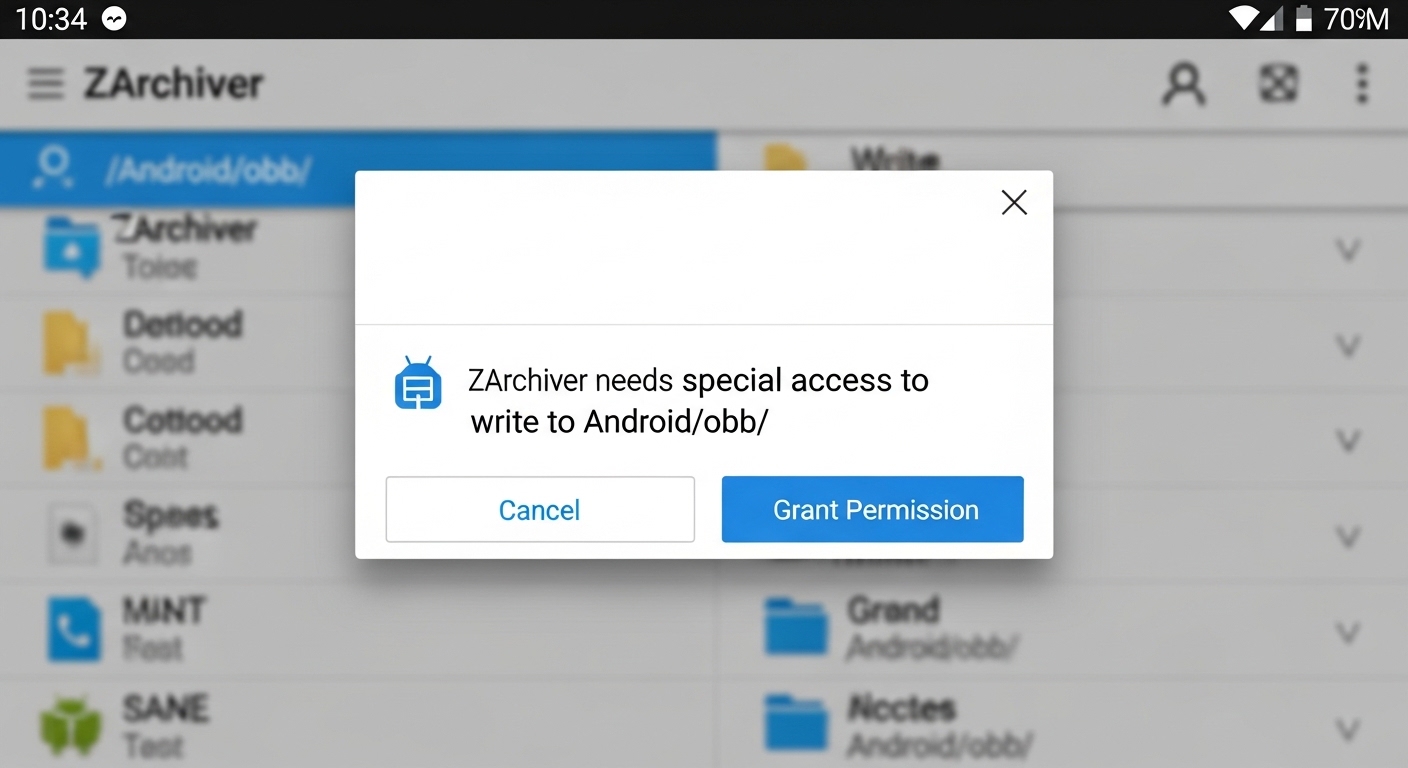
Android 11 and above introduced stricter storage permissions that prevent most file managers from writing directly to the Android/obb/ directory using the standard method. If you are on Android 11 or newer and cannot access that folder, use ZArchiver — it has special access to move files into restricted directories. Open ZArchiver, navigate to your OBB file, long-press it, select 'Copy', then navigate to Android/obb/ and paste. ZArchiver will prompt for special folder access — grant it. This solves the issue on Android 11, 12, 13, and 14 without root.
How to Install an APKM File with OBB Data
Some downloads come as .apkm bundle files instead of separate APK + OBB files. An APKM file contains both the APK and its OBB data in a single archive. To install it, you need the APKMirror Installer app — open the .apkm file with APKMirror Installer and it handles splitting and installing all components automatically. For a detailed guide on this format, check out the full APKM to APK installation guide on Gamesuki. Racing games like Asphalt Nitro and CarX Drift Racing 2 are frequently distributed in APKM format.
Frequently Asked Questions
Why does my game say 'data not found' after installing the APK and OBB?
This error almost always means the OBB file is in the wrong folder or the folder name does not exactly match the game's package name. Double-check the path: it must be /Android/obb/[exact.package.name]/[exact.obb.filename]. Both the folder name and the OBB filename are case-sensitive on Android.
Do I need root to install OBB files?
No. OBB installation does not require root on any Android version. On Android 11 and above, you need to use ZArchiver for folder access, but root is never necessary for standard OBB installation.
Can I move the OBB file to an SD card?
Most games require the OBB to be on internal storage. Some games support SD card OBB placement via the same /Android/obb/ path on the SD card, but this varies by game. If a game fails to detect OBB data from an SD card, move the file to internal storage.
Is it safe to download APK + OBB files from third-party sites?
It depends on the source. Reputable sites like APKMirror and APKPure scan files for malware. Before installing anything, use the APK Check tool to analyze the file for suspicious permissions or malicious code. Never install APKs from random forum links or unknown file hosts.
Will updating the game from the Play Store break my OBB install?
Yes, in most cases. A Play Store update will replace the APK but may download a new OBB version that conflicts with your manually placed file. After a Play Store update, the game typically downloads fresh OBB data from its own servers, which will either overwrite your file or cause a conflict. If you want to keep a specific version, avoid updating through the Play Store and source the matching APK + OBB bundle for that version instead.
Related articles
Browse all
AI Photo Editor MOD APK — Unlock All Filters & Premium Tools Free
Get the AI Photo Editor MOD APK with all premium filters, tools, and effects unlocked. No watermark, no subscription — edit like a pro on Android.

Aimbot COD Mobile — CODM Aimbot APK Guide, Risks & Alternatives
Everything you need to know about aimbot for COD Mobile: how it works, the real ban risks, and the best legal alternatives to dominate in CODM.

Among Us 3D Hacks & PC Hacks — What Really Works in 2025
Curious about Among Us 3D hacks and Among Us hacks on PC? This guide covers what these mods actually do, the ban risk, and the best ways to enhance your game safely.