How to Install APK on Android Without the Play Store (2026 Guide)
 Mhamed Ouzed
Learn how to install any APK on Android in under 2 minutes — no Play Store, no root, no account needed. Works on all Android versions.
How to Install APK on Android Without the Play Store
If you have ever tried to download a game or app that simply does not exist on the Google Play Store, you already know the frustration. Maybe it was removed, maybe it was never listed, or maybe you want a MOD version with features the official release does not offer. Whatever the reason, the solution is the same: install the APK file directly. And the good news is that Android was built with this in mind. The operating system has supported manual APK installation since its earliest versions, and the process has only gotten easier over time.
At gamesuki.com, every single game on the site is available as a direct APK download. That means no Play Store account required, no regional restrictions, no waiting for an update to roll out in your country. You download the file, install it in under two minutes, and you are playing. This guide covers the full process from start to finish — enabling the right settings, installing the file, troubleshooting common errors, and staying safe while doing it. By the end you will be able to install any APK on any Android device with complete confidence.
What Is an APK File and Why Would You Install One Manually?
APK stands for Android Package Kit. It is the file format Android uses to distribute and install applications — think of it like a .exe file on Windows or a .dmg on Mac. Every app you have ever installed from the Play Store arrived on your phone as an APK file. The Play Store just handles the download and installation silently in the background so you never see it. When you install an APK manually, you are doing the exact same thing — just without the Play Store as the middleman.
There are several legitimate reasons to install APKs manually. The most common is that the app or game you want is not available on the Play Store in your country. Google restricts certain apps by region, and many developers never bother listing their games on the Play Store at all — they distribute directly through their own sites or through platforms like gamesuki.com. Another major reason is MOD APKs. A MOD APK is a modified version of the original game that includes additional features: unlimited currency, unlocked premium content, removed ads, or extended gameplay. These versions are obviously not available on the Play Store, so direct installation is the only way to get them. Finally, some users prefer to install older versions of apps that worked better on their specific device, or to keep a version that has since been updated in ways they do not like.
Before You Start: Enable Unknown Sources on Your Android Device
Android does not allow APK installations from outside the Play Store by default. This is a security measure designed to protect users from accidentally installing malicious software. Before you can install any APK manually, you need to tell Android that you trust the source you are downloading from. This setting is called Unknown Sources on older Android versions and Install Unknown Apps on Android 8.0 and above. You only need to do this once.
Android 8.0 and Above — Per-App Permission
On Android 8.0 (Oreo) and all newer versions up to Android 14, the Unknown Sources setting is handled per app rather than as a single global toggle. This means you grant permission to a specific app — your browser or your file manager — to install APKs, rather than opening the door for everything. To enable it: open Settings, go to Apps, tap the three-dot menu in the top right corner, select Special App Access, then tap Install Unknown Apps. You will see a list of apps on your phone. Find the app you used to download the APK file — usually Chrome, Firefox, or your file manager — and toggle Allow from this source to ON. That is all. You can turn it off again after installing if you want to restore the default security settings.
Android 7 and Below — Global Toggle
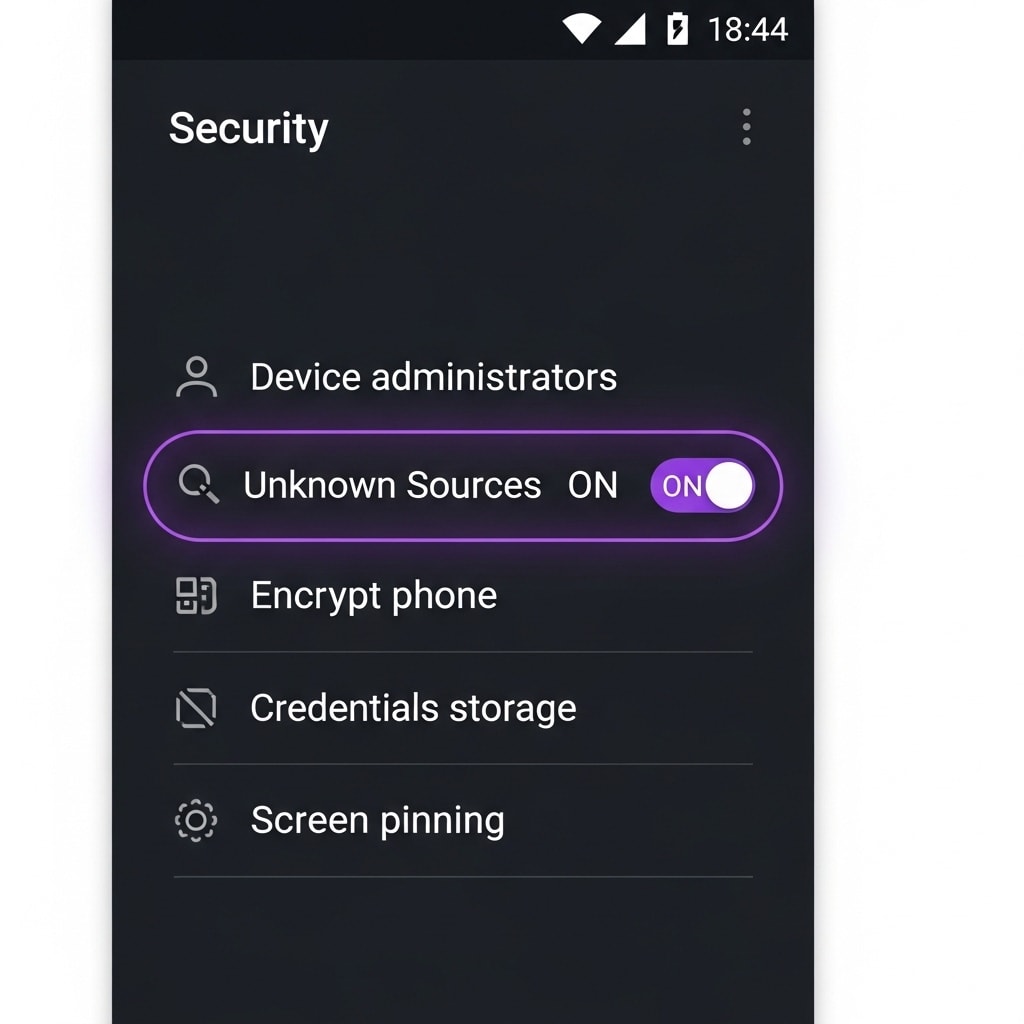
On Android 7 (Nougat) and all older versions, there is a single global switch that enables APK installation from all sources at once. Open Settings, scroll down to Security, find the entry labeled Unknown Sources, and toggle it ON. Android will show you a warning message explaining that third-party apps can harm your device. Tap OK to confirm. The setting is now active and will stay on until you manually turn it off. As long as you are downloading from a trusted source like gamesuki.com, there is no reason to worry about the warning.
Step-by-Step: How to Install an APK on Android
Once Unknown Sources is enabled, the actual installation process is straightforward. Here is exactly what to do, step by step.
Step 1 — Download the APK. Go to gamesuki.com, find the game you want, and tap the Download button on the game page. Your browser will ask you to confirm the download. Tap Download anyway or OK if prompted. The APK file will save automatically to your Downloads folder. Depending on the size of the game, this could take anywhere from a few seconds to a couple of minutes on a standard mobile connection.
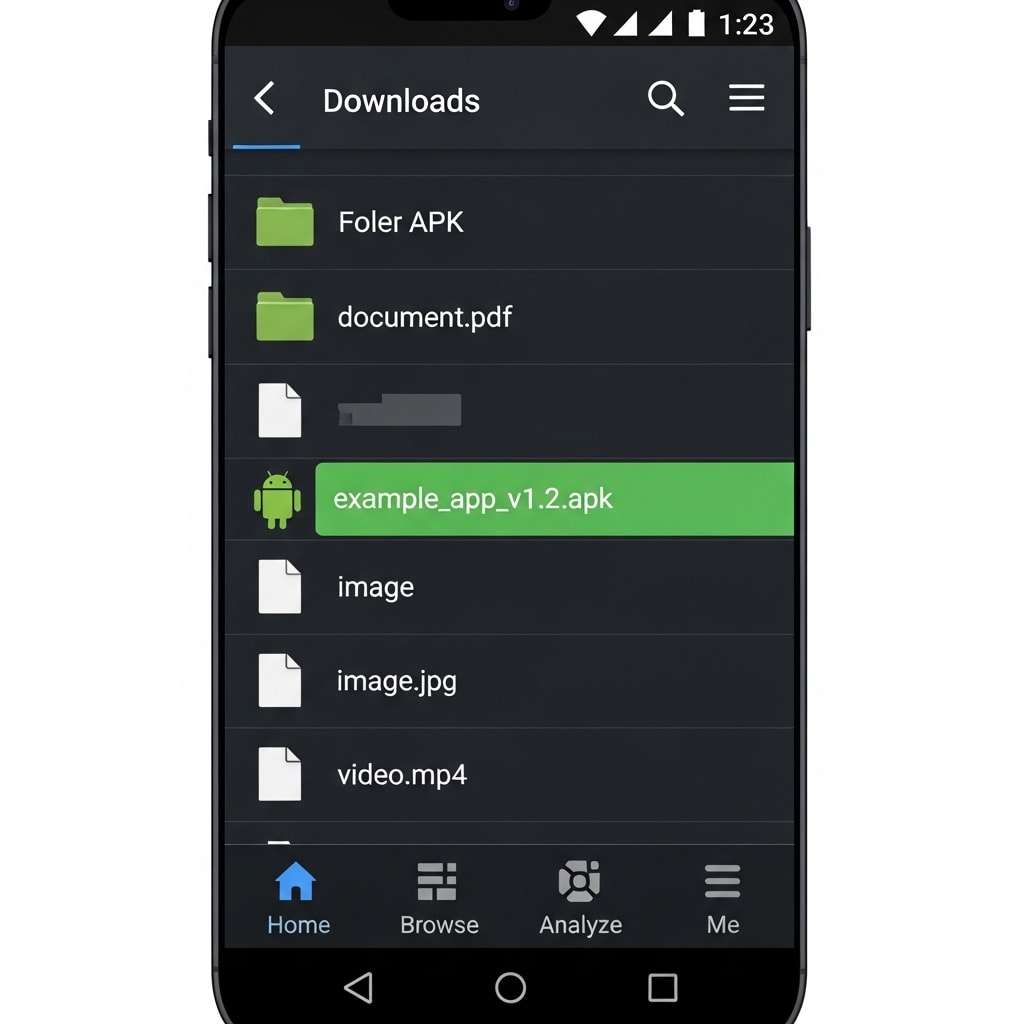
Step 2 — Open your file manager. Android does not automatically prompt you to install a downloaded APK the way a desktop operating system would. You need to navigate to the file yourself. Open your file manager app — Files by Google is pre-installed on most Android devices and works perfectly for this. If you do not have one, download Files by Google from the Play Store for free. Inside the app, tap Browse, then tap Downloads.
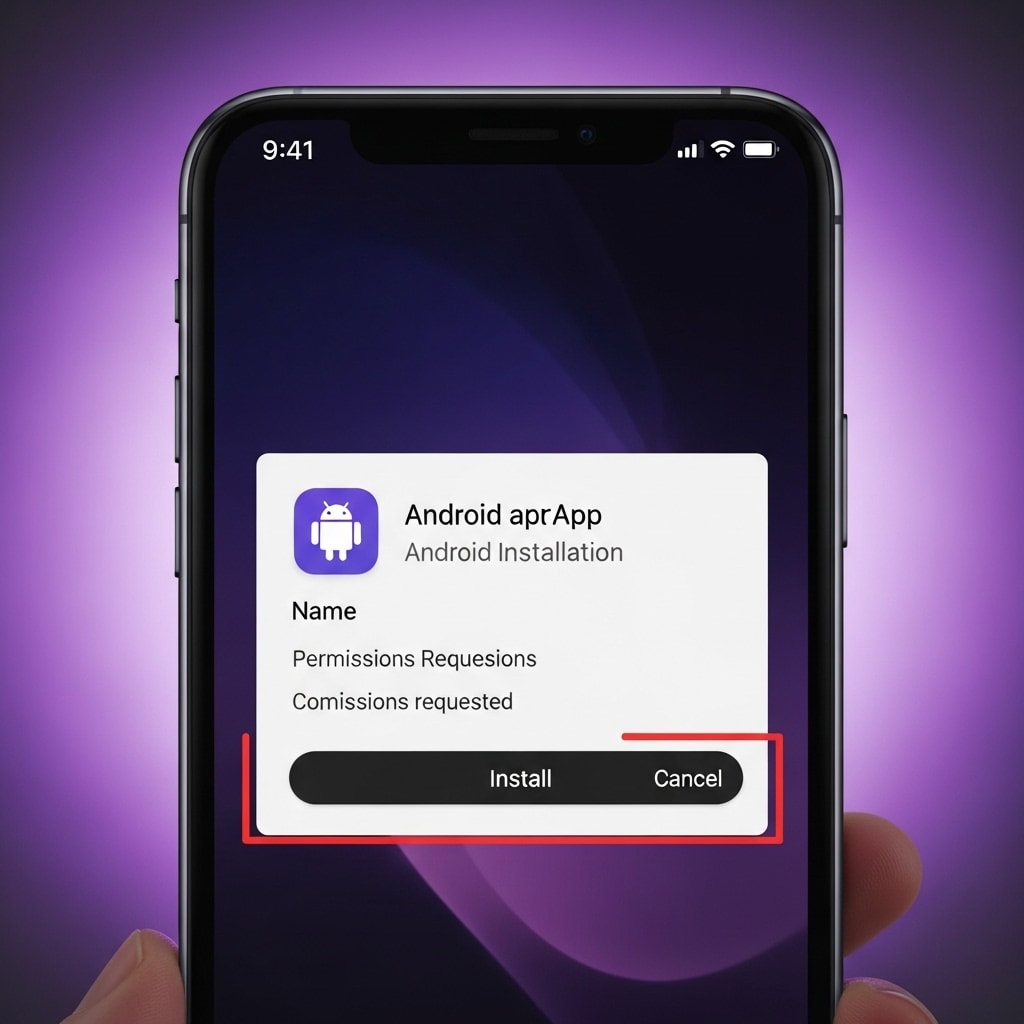
Step 3 — Tap the APK file. APK files have a green Android robot icon and end in the .apk extension. Tap the file once. Android will ask you to confirm that you want to install it. Review the app permissions if you like — for a game, you would typically expect to see storage access and possibly network access.
Step 4 — Tap Install. The installation process runs automatically. For most games this takes between 5 and 20 seconds. Larger games with OBB data files may take a bit longer to fully extract.
Step 5 — Open the game. When installation is complete, tap Open to launch the game immediately, or find its icon in your app drawer or on your home screen. The game is now fully installed and behaves exactly like any other app on your phone.
Try It Now: Download a Free Game from Gamesuki
The fastest way to learn this process is to run through it with a real download. Both of the games below are free on gamesuki.com, work on Android 5.0 and above, and install in under two minutes using the exact steps described in this guide. Minecraft is the world's best-selling game and a perfect first APK install — the file is stable, the installation is clean, and you will have a working game immediately. GTA San Andreas is one of the greatest open-world games ever made and installs just as easily.

Minecraft APK
Latest version — Free download, no Play Store needed. Android 5.0+. No root required.

GTA San Andreas APK
Full game — Free download for Android. Android 5.0+. No root required.
Troubleshooting: Common APK Install Errors and How to Fix Them
Most APK installations go smoothly, but occasionally something goes wrong. Here are the four most common errors and exactly how to fix each one.
App Not Installed Error
The App Not Installed error is the most common problem users encounter. It almost always means there is already a conflicting version of the app installed on your device. This happens most often with MOD APKs when you already have the official Play Store version installed. The fix is straightforward: go to Settings, open Apps, find the existing version of the game, and tap Uninstall. Once the original is fully removed, go back and install the APK again. If the game has cloud save support — Minecraft and many other titles do — your progress will restore automatically when you log in. If it does not support cloud saves, consider backing up your save data first using a file manager before uninstalling.
Parse Error
A parse error means Android cannot read the APK file correctly. The file is either corrupted, incomplete, or incompatible with your device. The most common cause is a failed or interrupted download — if your internet connection dropped even briefly while the file was downloading, the resulting APK file may be missing data. Delete the file from your Downloads folder and download it again from gamesuki.com. Make sure your connection stays stable during the download. If the parse error persists on a fresh download, the APK may not be compatible with your specific Android version — check the minimum Android requirement on the game page.
Insufficient Storage
Android requires free storage not just to hold the APK file but also to extract and install it. A game that is 500 MB as an APK might need 1 GB or more of free space during installation. If you get an insufficient storage error, open Settings, go to Storage, and check how much space is available. The quickest way to free up space is to move photos and videos to Google Photos or another cloud service, then delete the local copies. Clearing the cache of large apps — open Settings, tap Apps, select an app, tap Storage, tap Clear Cache — can also recover several hundred megabytes without losing any data.
Security Warning Keeps Appearing
If Android keeps showing a security warning every time you try to install the APK, it usually means one of two things. Either the Unknown Sources setting was not saved correctly — go back and re-enable it for the specific app you are using to open the APK file — or Google Play Protect is actively blocking the installation. If Play Protect is the issue, open the Play Store, tap your profile icon in the top right, tap Play Protect, tap the gear icon, and toggle Scan apps with Play Protect to off temporarily. Install your APK, then turn Play Protect back on. All gamesuki APKs are clean and will pass a Play Protect scan if you choose to re-enable it.
How to Stay Safe When Installing APK Files
The biggest risk with APK installation is not the process itself — it is downloading from an untrustworthy source. Malicious APK files do exist on shady sites, and they can install malware, harvest personal data, or display aggressive adware. The way to stay completely safe is simple: only download APKs from sites you trust. Gamesuki.com manually reviews and virus-scans every single file before publishing. Every game page shows the version number, file size, and Android requirements, so you always know exactly what you are installing.
If you ever want to independently verify an APK file before installing, upload it to VirusTotal at virustotal.com. VirusTotal scans the file against over 70 antivirus engines and shows you the results in seconds. A clean gamesuki APK will show zero detections or a small number of false positives from overly aggressive scanners — this is completely normal and does not indicate a real threat. As a general rule: if a site does not show you the file size, does not list the version, asks you to complete a survey before downloading, or redirects you through multiple pages, leave immediately. Gamesuki.com has none of these issues.
Frequently Asked Questions
Is it legal to install APKs on Android?
Yes, completely legal. Android was designed to support sideloading — Google built the Unknown Sources setting into the operating system specifically for this purpose. Installing an APK file is not illegal in any country. MOD APKs occupy a grey area in terms of the original developer's terms of service, but the act of installing a file on your own device is never a legal issue.
Will APKs work on all Android versions?
Each APK has a minimum Android version requirement. On gamesuki.com, this is listed on every game page. The vast majority of games on the site support Android 5.0 and above, which covers nearly every Android device still in active use. If you are on a very old device running Android 4.x, some newer games may not be compatible, but older titles and lighter games will work fine.
Can I uninstall a sideloaded APK the same way as Play Store apps?
Yes, exactly the same way. Go to Settings, open Apps, find the app you want to remove, and tap Uninstall. Android treats manually installed APKs identically to Play Store installs in every respect — uninstalling, clearing data, managing permissions, and everything else works the same way.
Do I need root to install APKs?
No. Rooting is not required for APK installation and never has been. The Unknown Sources setting gives you everything you need to install any APK on a completely stock, unmodified Android device. Root is only required for certain deep system modifications that have nothing to do with installing apps or games.
Is gamesuki.com safe to download from?
Yes. Every APK on gamesuki.com is manually reviewed and scanned for malware before it is published. The site has published over 300 games with zero reported malware incidents. All download links are direct — there are no redirects, no surveys, and no misleading buttons. If you want extra reassurance, you can always scan any downloaded file on VirusTotal before installing.
Installing APKs is simpler than it sounds. Follow these steps once and you will never need to look them up again. The entire process takes less than two minutes.
Download Your First APK from Gamesuki — It Takes Under 2 Minutes
You now have everything you need to install any APK on Android — whether it is a free game, a MOD APK, or an app that your region cannot access on the Play Store. The process is the same every time: enable Unknown Sources once, download from a trusted source, tap the file, tap Install. That is it. Head to gamesuki.com to browse over 300 free Android games — no account required, no ads, no Play Store needed. Every game on the site installs using exactly the steps you just learned. Your first download is one tap away.
Minecraft APK — Start Here
Test your new install skills with the world's most popular mobile game. Latest version, free download, Android 5.0+. No root required.
Every APK on gamesuki is manually reviewed and virus-scanned before publishing. Over 300 games. Zero malware incidents. Download with confidence.
Related articles
Browse all
AI Photo Editor MOD APK — Unlock All Filters & Premium Tools Free
Get the AI Photo Editor MOD APK with all premium filters, tools, and effects unlocked. No watermark, no subscription — edit like a pro on Android.

Aimbot COD Mobile — CODM Aimbot APK Guide, Risks & Alternatives
Everything you need to know about aimbot for COD Mobile: how it works, the real ban risks, and the best legal alternatives to dominate in CODM.

Among Us 3D Hacks & PC Hacks — What Really Works in 2025
Curious about Among Us 3D hacks and Among Us hacks on PC? This guide covers what these mods actually do, the ban risk, and the best ways to enhance your game safely.