HappyMod PC — How to Use HappyMod on Windows (2026 Guide)
 Mhamed Ouzed
Want to run HappyMod on PC and play Android mods on Windows? Here's the complete 2026 guide to using HappyMod para PC with an emulator — step by step.
HappyMod on PC — Play Android Mods on Windows Without a Phone
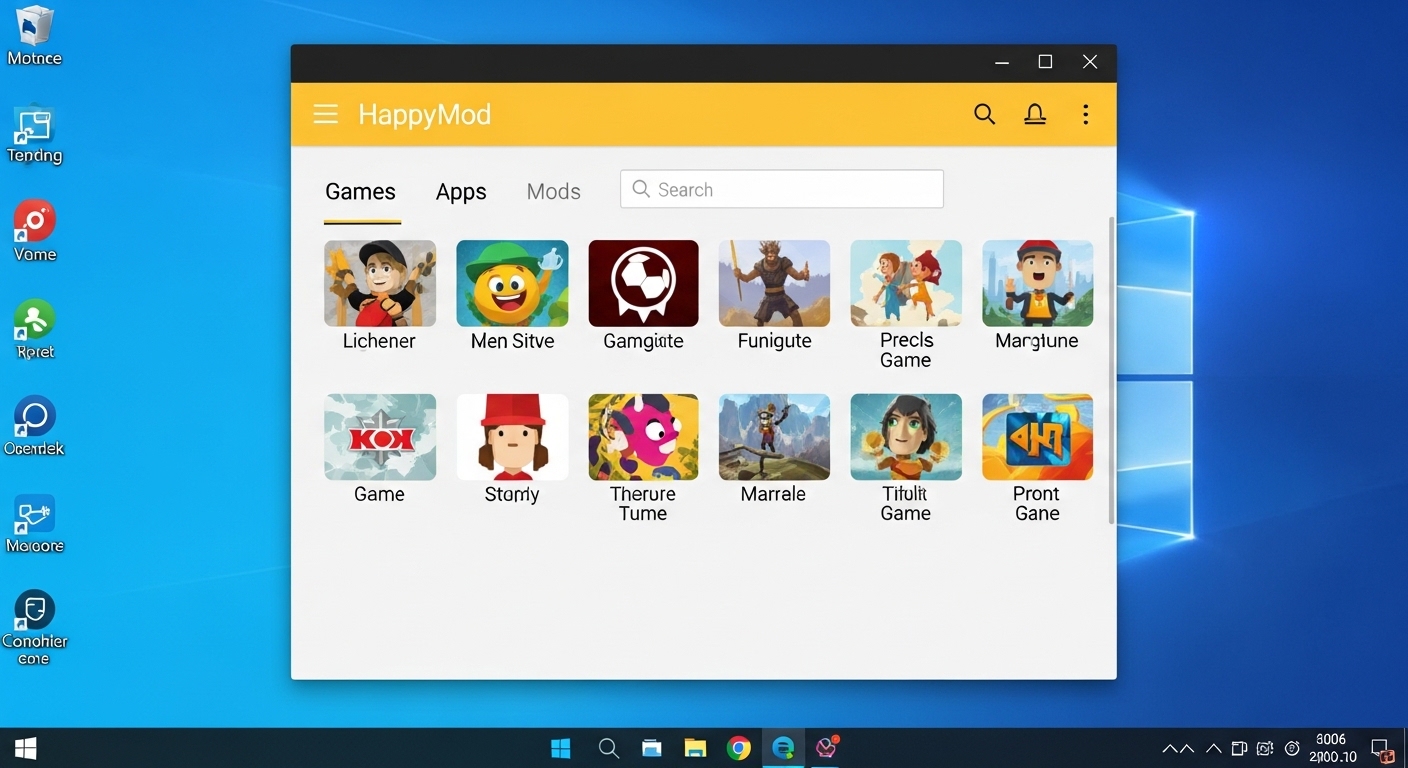
HappyMod para PC is one of the most searched topics among mobile gamers who want a bigger screen, better performance, and keyboard control for their favorite modded Android titles. While there is no dedicated HappyMod Windows client, you can run the full HappyMod app on any Windows PC using an Android emulator. This guide covers the two most reliable emulators for the job, how to install HappyMod inside them, and how to get your modded games running at 60fps on PC. If you're also interested in games that are built for PC modding from the ground up, check out our Best Moddable PC Games guide alongside this one.
How to Install and Use HappyMod on PC
Step 1 — Choose an Android Emulator
The two best options for running HappyMod PC in 2026 are LDPlayer 9 and BlueStacks 10. LDPlayer is lighter on RAM and handles APK sideloading more smoothly, making it the recommended pick for HappyMod specifically. BlueStacks has a larger ecosystem and works better if you want to run multiple Android apps simultaneously. Both are free. Minimum PC specs for a smooth experience: Windows 10 or 11 (64-bit), 8GB RAM, Intel Core i5 or equivalent, and a GPU with DirectX 11 support.
Step 2 — Download and Install the Emulator
Go to the official LDPlayer or BlueStacks website and download the installer. Run the .exe file and follow the setup wizard. The emulator creates a virtual Android device on your PC — no actual Android phone required.
Step 3 — Sideload the HappyMod APK
Once the emulator is running, download the HappyMod APK from Best MOD APK Store for Android or the official HappyMod website. Drag the APK file directly into the emulator window — LDPlayer and BlueStacks both support drag-and-drop APK installation. The app will install automatically within seconds.
Step 4 — Browse and Install Mods
Open HappyMod inside the emulator. Search for any game you want — Clash of Clans, Subway Surfers, Brawl Stars — and tap 'Download MOD'. HappyMod handles the APK download and installation automatically within the emulator environment. You can then launch the modded game directly from HappyMod or from your emulator's home screen.
Performance tip: In LDPlayer settings, allocate at least 4 cores and 4GB of RAM to the virtual device for smooth gameplay. Enable VT-x/AMD-V in your BIOS if emulator performance is sluggish.
Frequently Asked Questions
Is HappyMod PC free to use?
Yes — HappyMod itself is free, and both LDPlayer and BlueStacks are free emulators. The entire setup costs nothing. Some games on HappyMod contain in-game purchases in their official versions, but the modded APKs typically bypass those.
Does HappyMod on PC require root or admin access?
No root is required. You do need standard Windows administrator privileges to install the emulator, but that's the same as any normal software installation. Once the emulator is running, HappyMod installs and operates just like it does on a physical Android device.
Can I use a controller with HappyMod games on PC?
Yes. Both LDPlayer and BlueStacks support USB and Bluetooth controllers via key mapping. You can assign any gamepad button to on-screen touch controls, which works especially well for action games like Dead Cells or Shadow Fight 2 downloaded through HappyMod.
Related articles
Browse all
AI Photo Editor MOD APK — Unlock All Filters & Premium Tools Free
Get the AI Photo Editor MOD APK with all premium filters, tools, and effects unlocked. No watermark, no subscription — edit like a pro on Android.

Aimbot COD Mobile — CODM Aimbot APK Guide, Risks & Alternatives
Everything you need to know about aimbot for COD Mobile: how it works, the real ban risks, and the best legal alternatives to dominate in CODM.

Among Us 3D Hacks & PC Hacks — What Really Works in 2025
Curious about Among Us 3D hacks and Among Us hacks on PC? This guide covers what these mods actually do, the ban risk, and the best ways to enhance your game safely.